After the dataset is published, the depositor automatically receives Contributor rights, allowing them to modify the dataset in the future (e.g., by adding a new file or linking to a related publication).
When the depositor makes and saves changes to a published dataset, a draft version is automatically created. The depositor is required to submit this draft for re-verification. You will be notified about datasets requiring verification via email; they can also be found in your account under the Notifications tab.
First, check whether it is a new dataset or a new version of an existing dataset. You can verify this in the Versions tab. If it's a draft of a new version, you can click View details to see what changes have been made to the dataset.
When reviewing a new version of a dataset, follow the same procedure as when correcting a new submission.
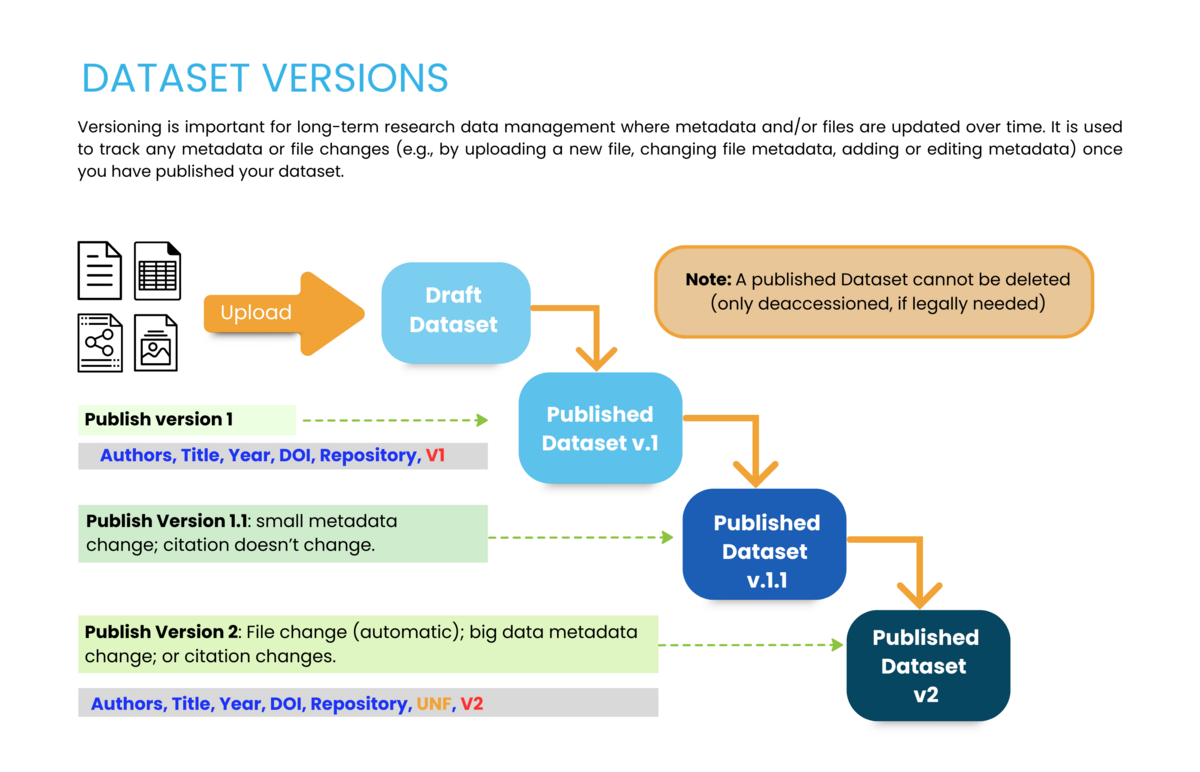
When the dataset is ready for publication, decide what version number it should receive:
• If it involves a minor change (e.g., updating a description field), the system allows version 1.1.
• If it involves a major change (e.g., adding a file), the system permits only version 2.0.
The following graphic explains when to assign which version number.
The system also allows you to choose the Update Current Version option, which completely overwrites the most recently published version. Note: this option is reserved for exceptional cases, such as correcting typos in the dataset description. Selecting this option means that it will not be possible to track the changes made.
You are obligated to regularly check whether there are any unpublished datasets (draft versions) that have not been submitted for review. If a dataset remains in Unpublished status for more than three months, you should contact the depositor and remind them to submit the dataset for verification (or delete the draft version).
Source: Dataverse Project Dataset + File Management — Dataverse.org